Getting Started: From Long Video to Published Short
A step-by-step walk-through: sign in, upload a long video, let Minti find the moments, style your Short, and publish across platforms.
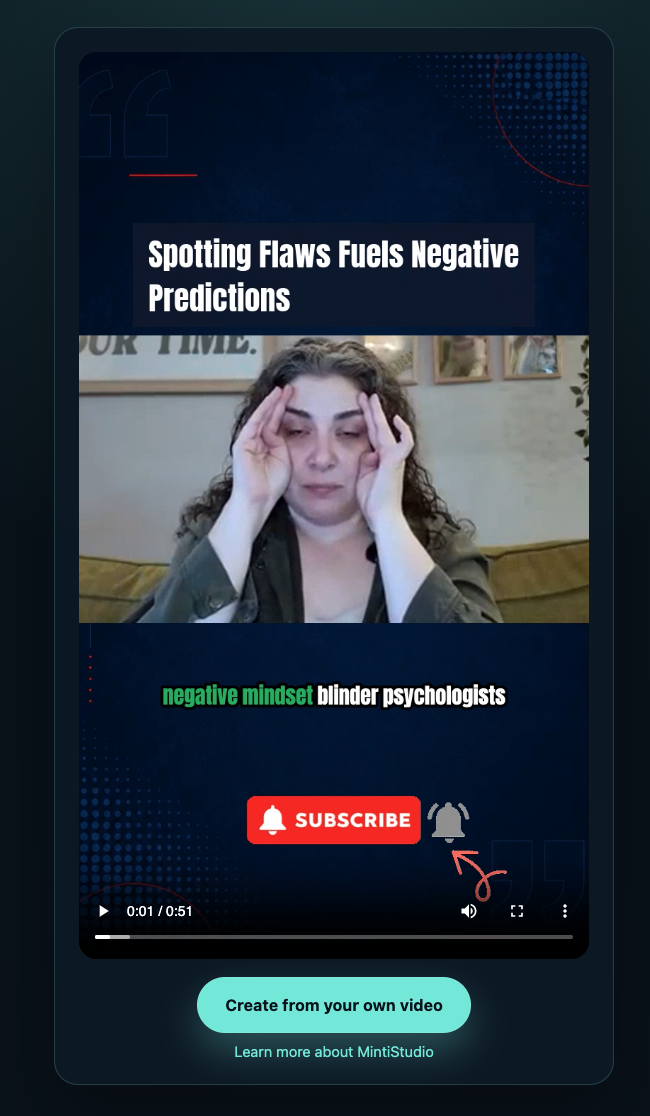
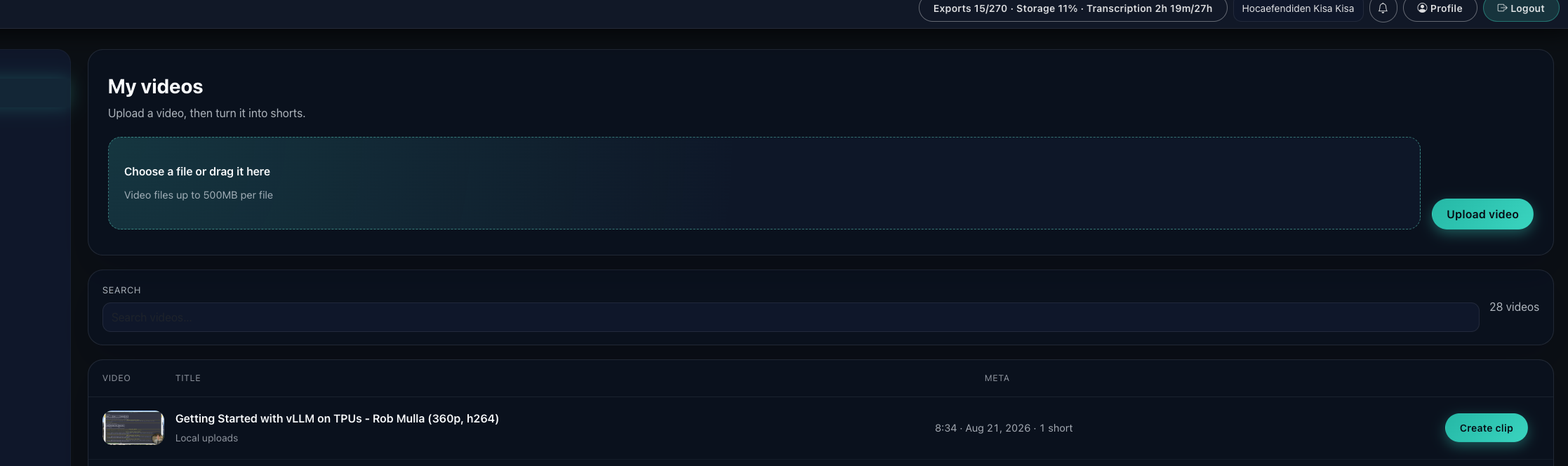
Step 01: Open your account and land in My Videos
Start by signing in to MintiStudio, then head straight to My Videos. This is your working library: the place where uploaded long videos, generated Shorts, and their current progress all come together.
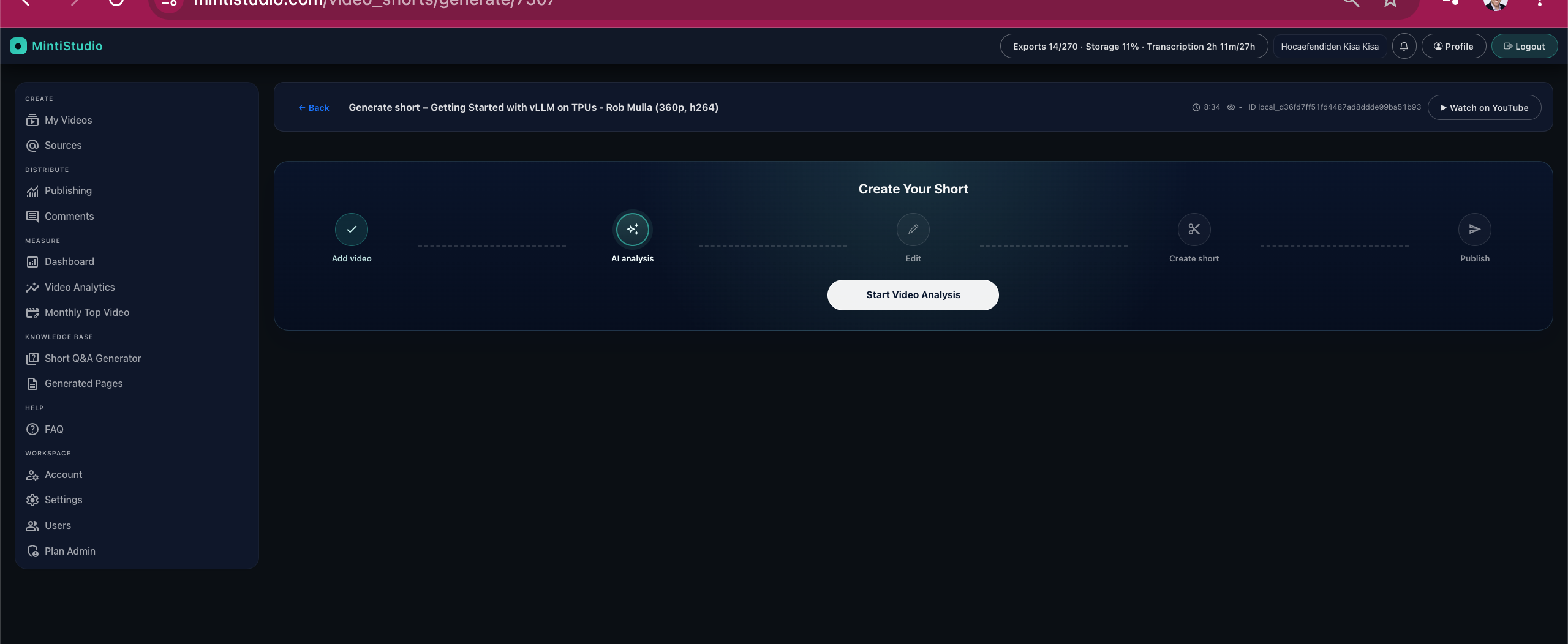
Step 02: Upload a long video and start the analysis
Upload the long-form video you want to repurpose, then start analysis. MintiStudio prepares the video for the rest of the workflow by pulling together the media, transcript, and clip-planning context.
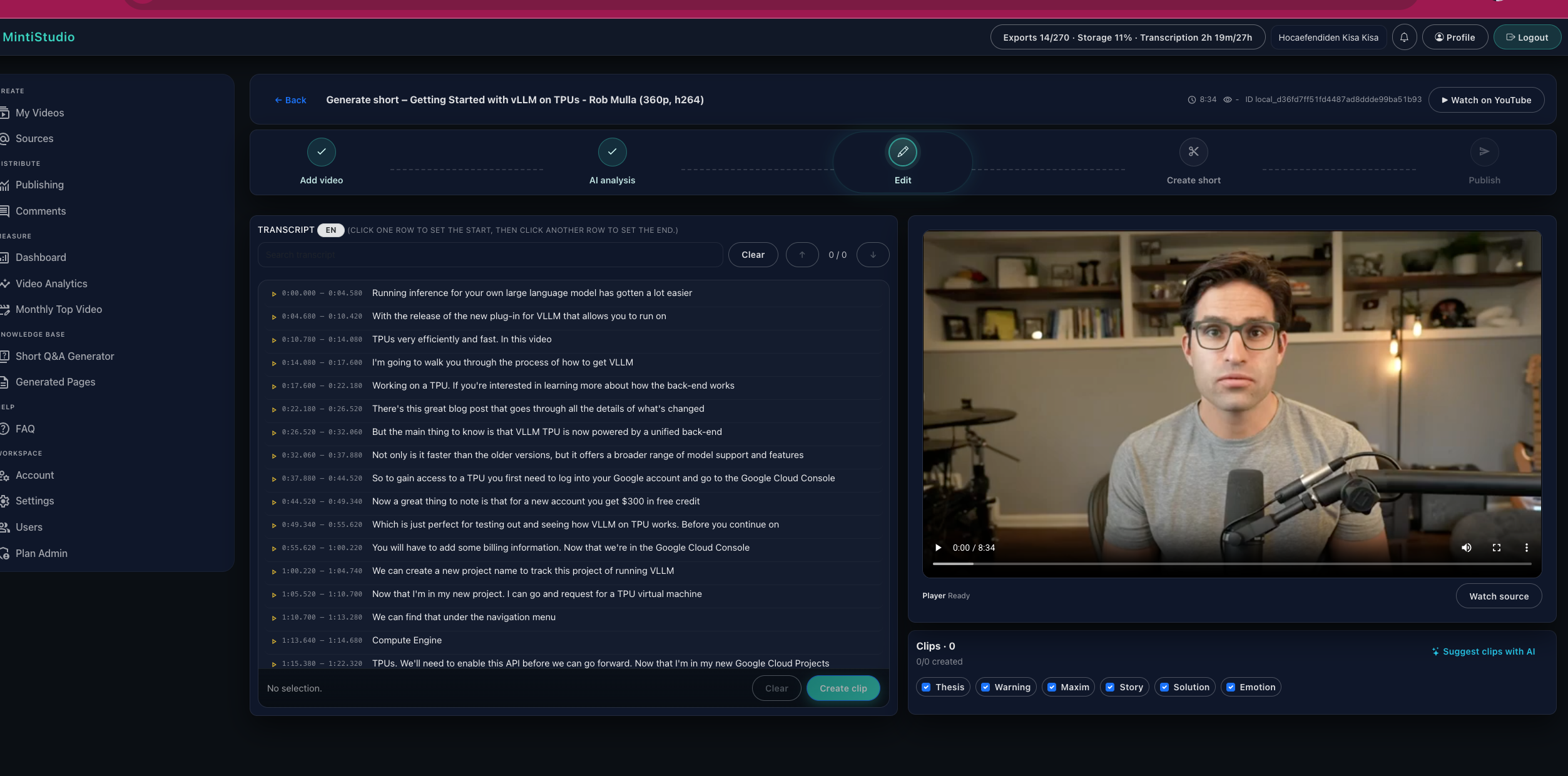
Step 03: Review and clean up the transcript
Once the transcript is ready, skim through it and make any fixes that matter before clipping. A clean transcript gives Minti better material for suggestions and makes later caption editing much smoother.
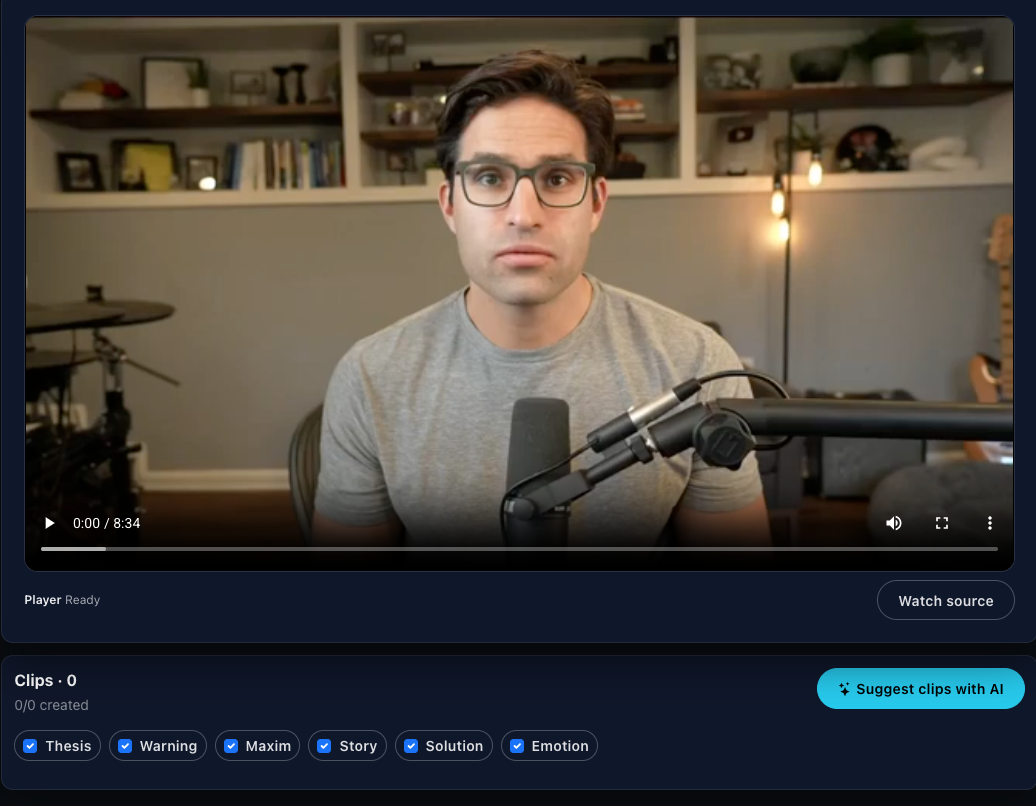
Step 04: Let Minti suggest the strongest moments
Ask Minti to suggest clips from the full video. Instead of starting from a blank slate, you get a set of candidate moments that are already shaped around hooks, self-contained ideas, and short-form pacing.
Step 05: Choose a clip and style the frame
Open the clip in the editor and set the look you want: crop, background, subtitles, and overall framing. This is where the Short starts to feel ready for publishing rather than just extracted.
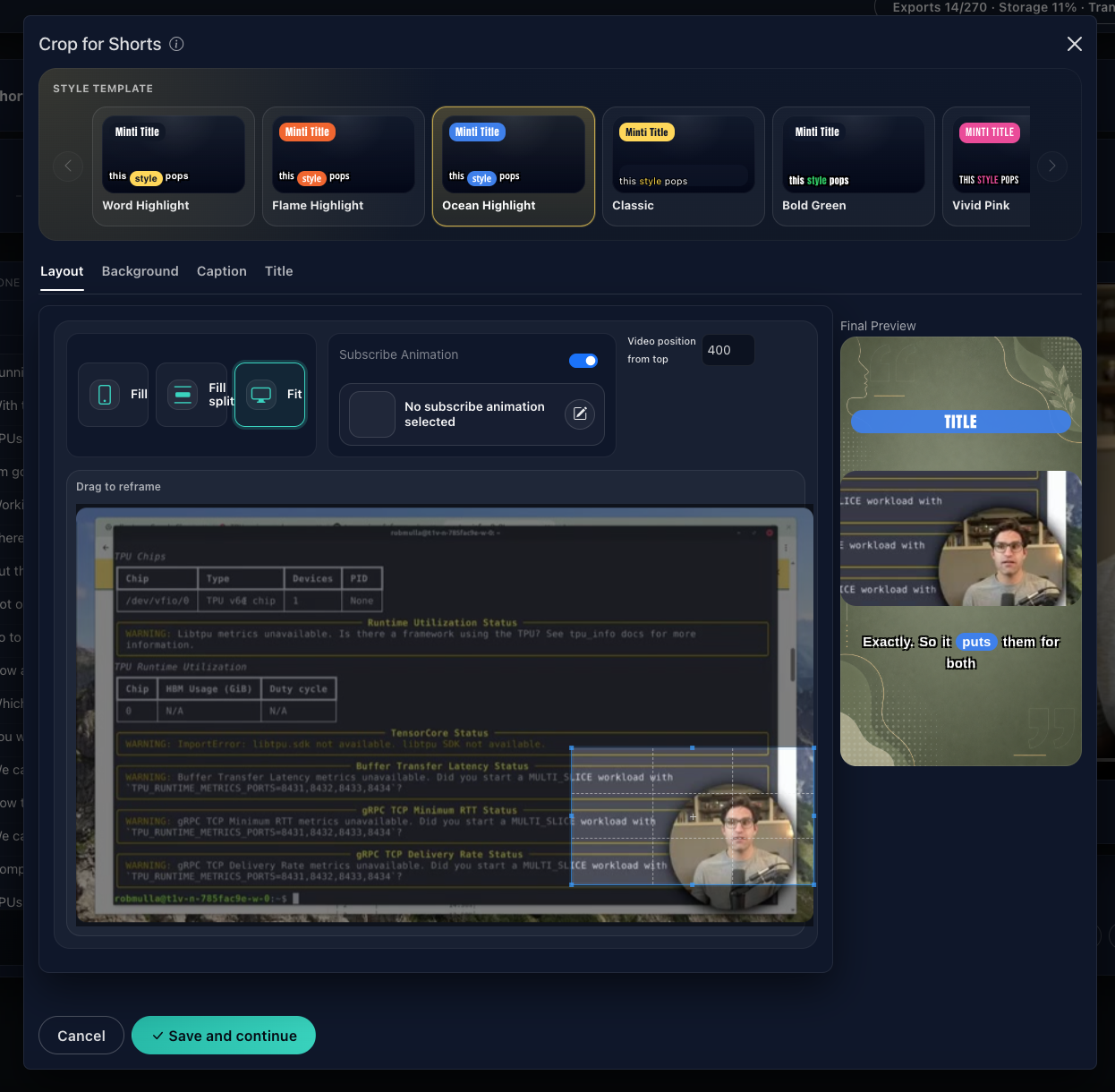
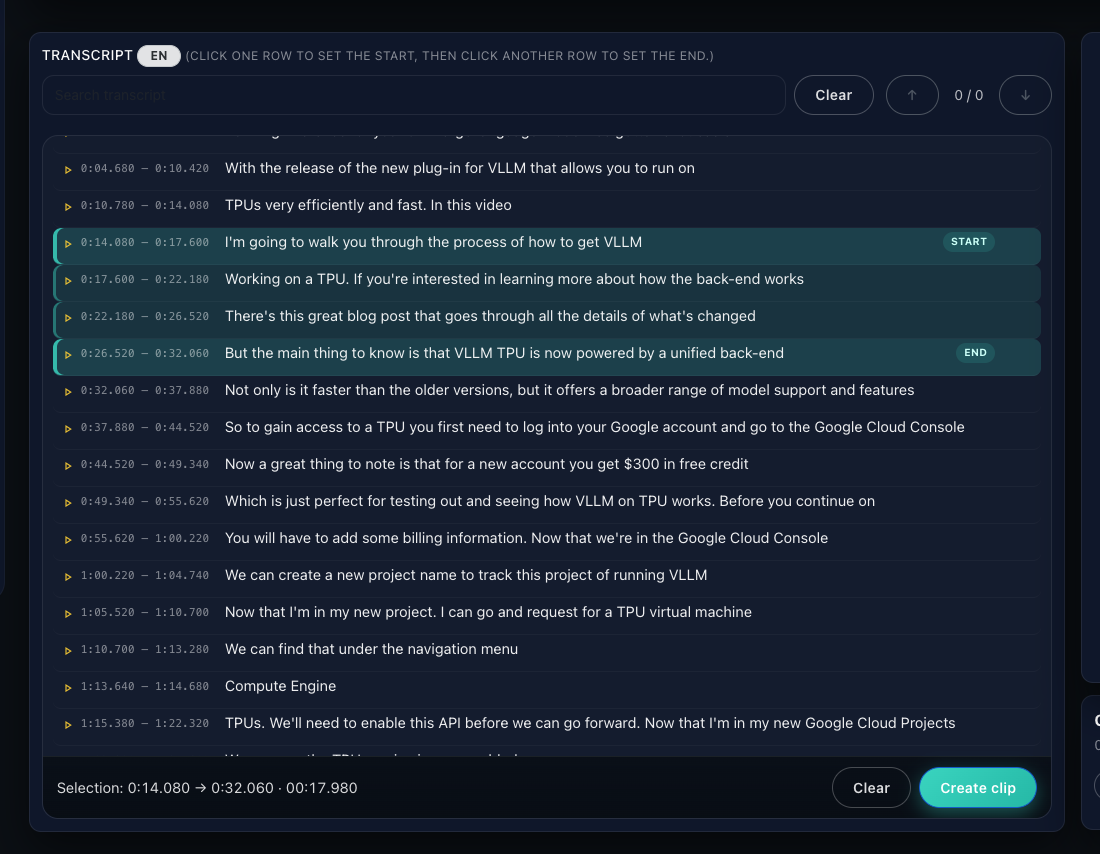
Step 06: Create the clip from the chosen moment
When the framing and styling look right, create the clip. Minti turns that selected range into a proper Short project that can now be rendered, reviewed, and published.
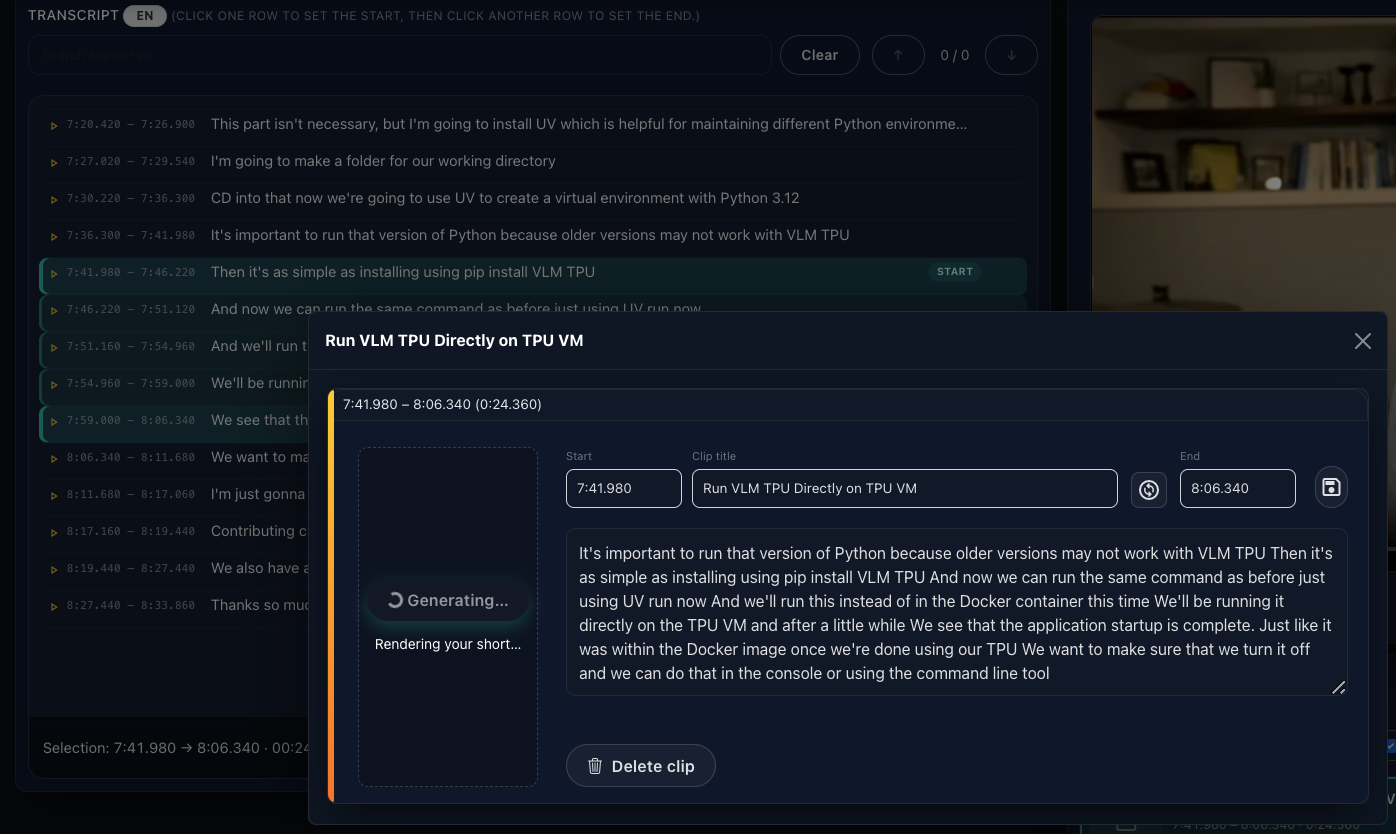
Step 07: Render the final Short
Run the render once everything is set. Minti composes the vertical video, captions, title treatment, and background choices into the final export you can review and download.
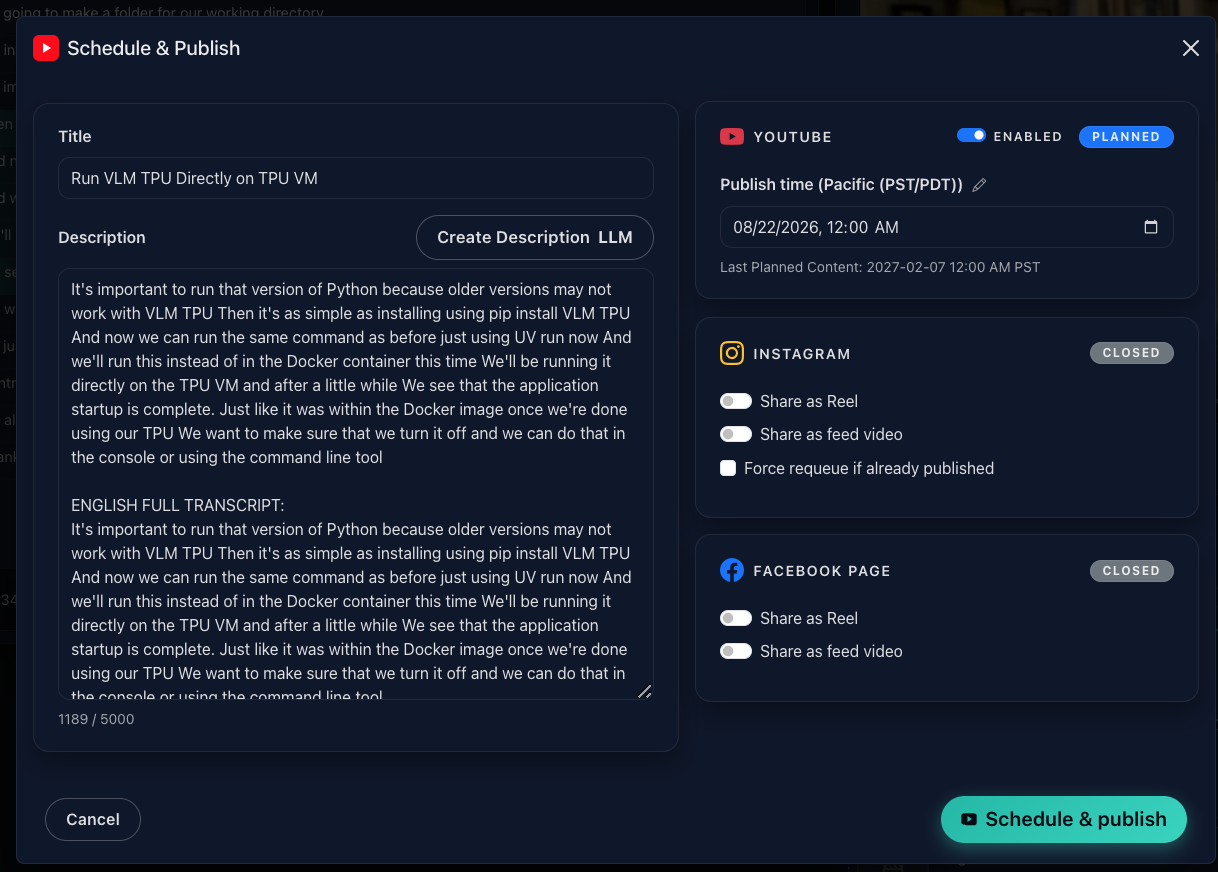
Step 08: Schedule and publish across platforms
After rendering, send the Short into your publishing flow. You can schedule the release and manage where it goes next, so YouTube, Instagram, and Facebook all fit into the same workflow instead of separate tools.
Step 09: Track the result and keep the loop going
Once the Short is live, use the tracking view to see how it performed and carry that learning into the next batch. The workflow is meant to repeat: one long video in, several smarter Shorts out.
Next step
Turn one long video into a publishable Shorts workflow — upload once, find the moments, style the clip, and publish across platforms from the same place.
Upload once, find the moments, style the clip, and publish across platforms from the same place.
More from the blog
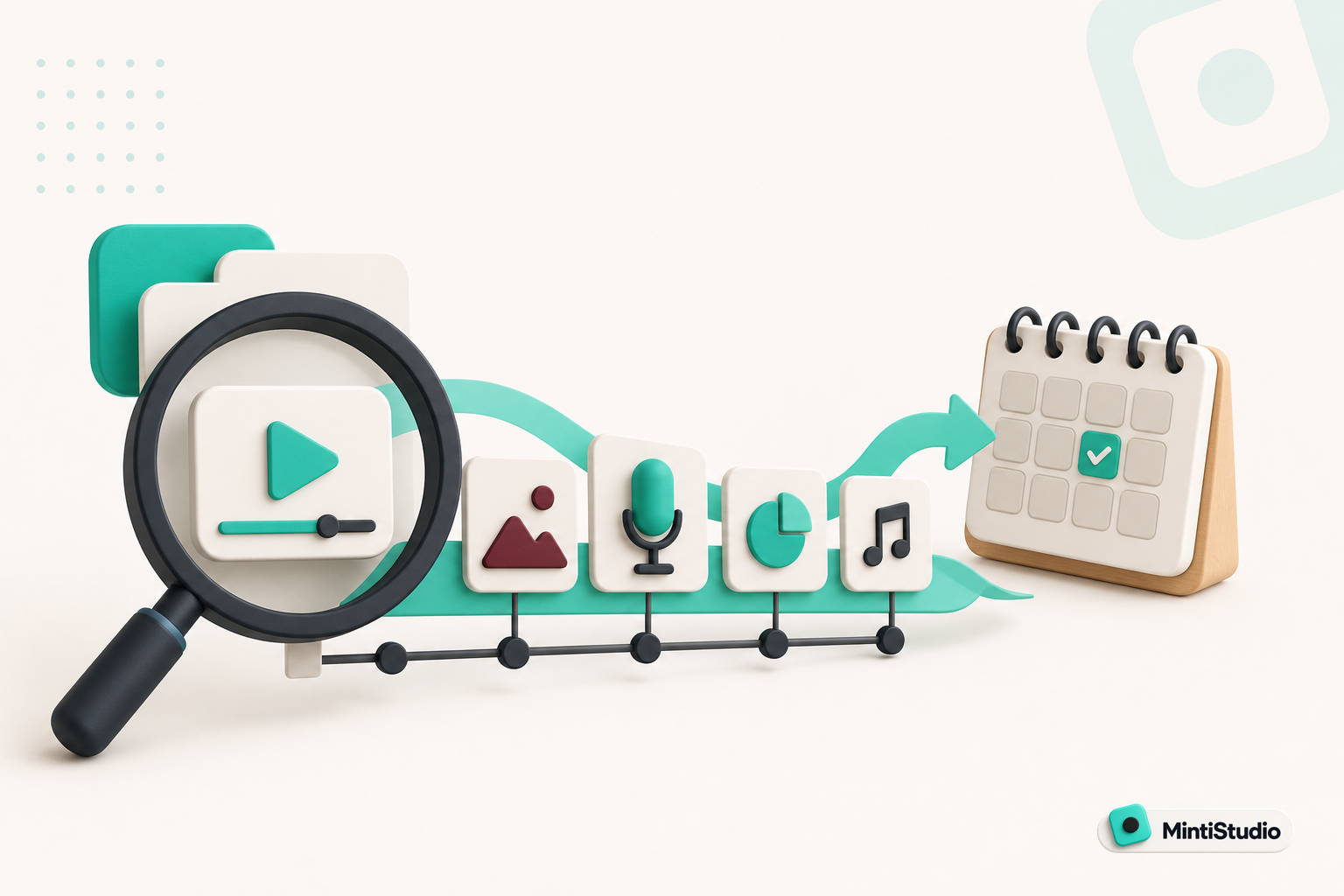
Help New Viewers Follow Your Expertise One Lesson at a Time
A practical guide for educators, coaches, and podcasters who want Shorts to build understanding in sequence instead of acting like disconnected teasers. Learn how to plan a YouTube Shorts series, avoid common packaging mistakes, and use MintiStudio to turn long recordings into a coherent teaching flow.

Best OpusClip Alternatives for Busy Experts Who Need Less Clipping Work
A practical comparison of OpusClip alternatives for solo educators, coaches, consultants, and podcasters who want less weekly clipping work. See which tools fit self-serve editing, planning, publishing, and done-for-you Autopilot workflows.