Free YouTube to Shorts: Paste a Link, Get an Edited Short in Minutes
Paste a YouTube link and get a captioned, vertical Short in minutes. AI picks the best moment, you edit it like a document. Free, no sign-up to try.
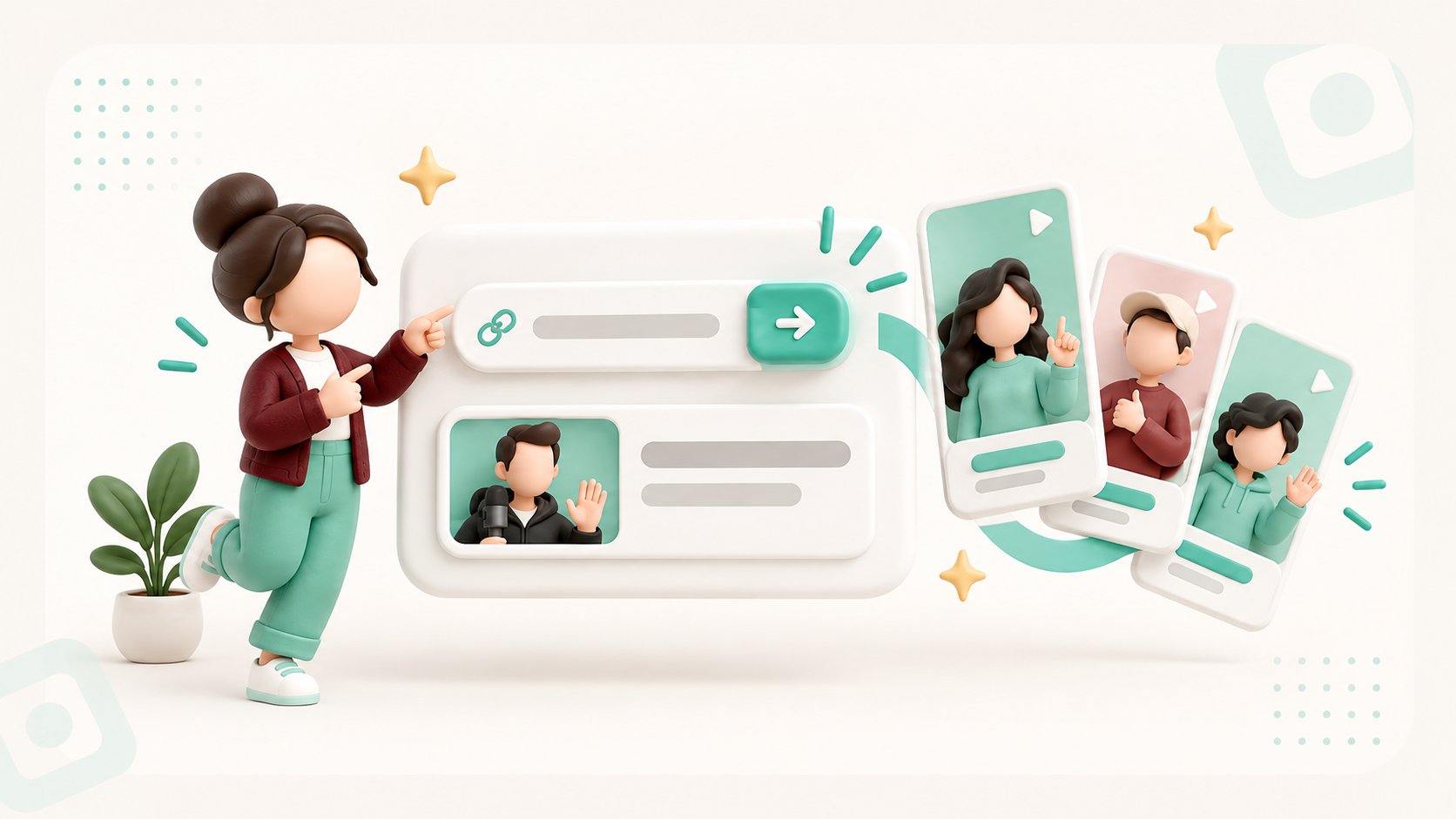
Your best Short is already inside a video you published.
You spent hours recording a 20-minute video. Somewhere inside it there are two or three moments that would stop someone mid-scroll: a sharp answer, a personal story, a line that lands.
The problem is the work in between. Scrubbing the timeline, finding a clean start and end, reframing a wide shot to vertical, adding captions, writing a title. Do that for every upload and Shorts quietly become a second job.
We built a free tool to remove that work: paste a YouTube link, and you get an edited Short back.
The goal is simple: one paste, one finished Short, and the freedom to fix anything before you post it.
What the free tool does
YouTube to Shorts is the same engine our customers use every day, open to anyone, with no sign-up needed to try it.
- It transcribes your video with its own speech model, not YouTube's auto-captions.
- It scores every passage for a strong hook, clarity, and whether it makes sense on its own.
- It renders the strongest moment as a vertical Short with captions and a title.
- It lists more suggested moments underneath, each with its score.
You can make up to three Shorts from one video up to 30 minutes long, without an account.
How to use it, step by step
Paste your YouTube link
Copy the link of a video up to 30 minutes long and paste it into the box. The thumbnail, title and length appear right away.
Watch the progress
Minti fetches the video, prepares the transcript, finds the best moments and renders your first Short. You can follow each step on the page.
Open your first Short
You land in the editor with your best moment already turned into a vertical, captioned Short. The other suggested moments are listed below it.
Edit it like a document
Cut words from the transcript and they're cut from the video. Fix caption text, change the title, caption style or layout, then click Save & regenerate.
Download or schedule
Create a free account (no credit card) to download your Short, or connect your channel and schedule it to YouTube, Instagram and Facebook. Your clips and edits move into your account automatically.
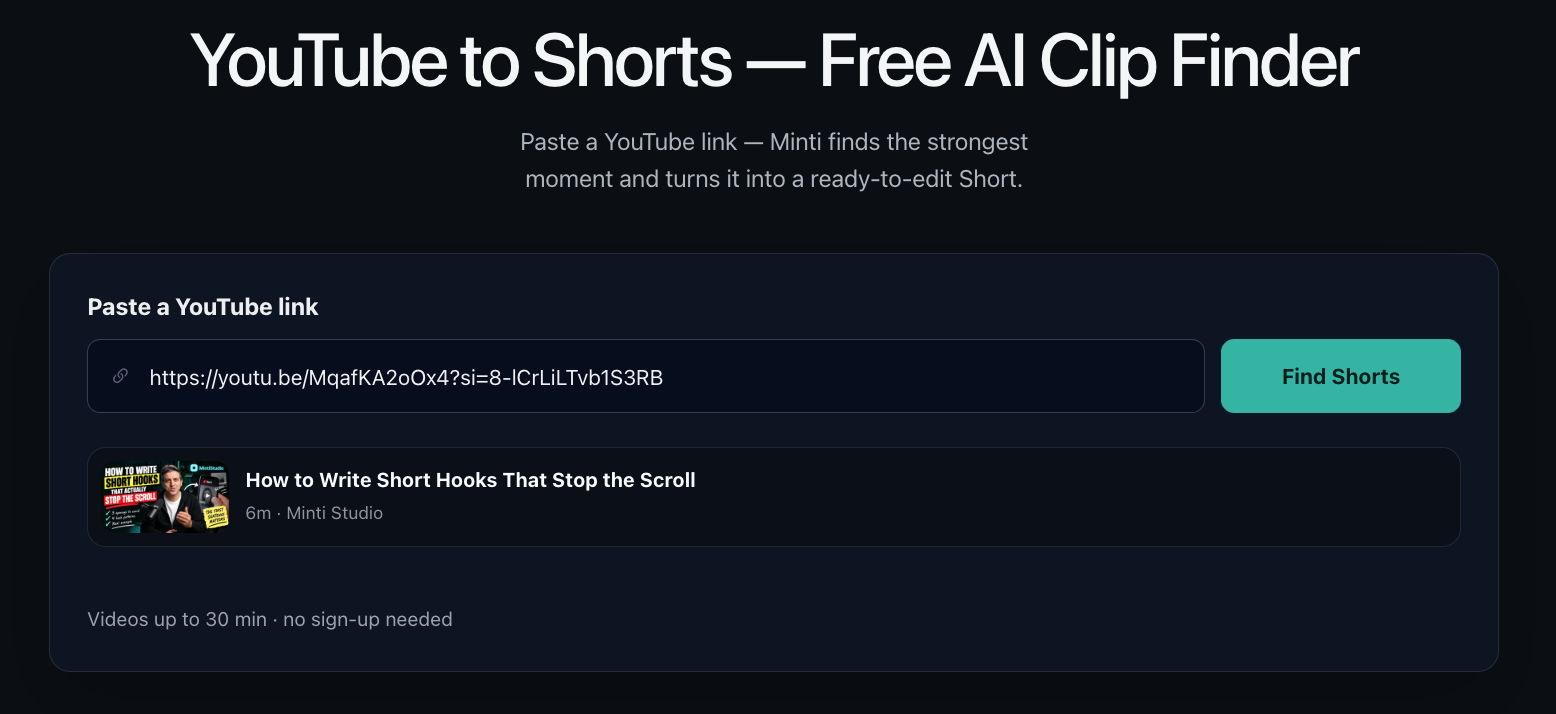 Screenshot from MintiStudio
Framing that follows the people on screen
A wide horizontal shot doesn't fit a vertical screen by default. Cropping the middle often cuts someone out.
The tool frames the Short around the faces it finds:
- One person talking stays centered and followed through the clip.
- Two people on screen, as in an interview, become two stacked frames so both stay visible.
- You can keep the original 16:9 frame instead, if the shot works better wide.
Interviews and podcasts with two speakers are where automatic framing saves the most time. Check the split layout on your first Short before you change anything by hand.
 Screenshot from MintiStudio
What makes the AI pick a moment
Not every minute of a long video works as a Short. The moments that perform well usually share three things:
1. A hook in the first seconds
A question, a bold claim, or the start of a story. If the first line needs context from earlier in the video, it won't hold a new viewer.
2. It stands alone
Someone who has never seen you should understand it without the rest of the video.
3. One idea, finished
A single point, made clearly, with an ending. Most strong clips land between 30 and 60 seconds.
That is what the scores in the editor reflect. A higher score means a stronger standalone moment, but you can create any suggestion, or make your own clip from the transcript.
Editing without a timeline
Most clip tools stop at the first result. If the cut starts a sentence too early, you're back in an editor.
Here, the transcript is the editor:
- remove a filler sentence or a false start by deleting the words
- fix a misheard word in the captions
- shorten the setup so the payoff comes first
- change the title before you regenerate
Tips for Shorts that get watched
- Lead with the payoff. If the best line comes 20 seconds in, cut the setup from the transcript.
- Keep captions on. Many people watch Shorts with the sound off.
- Write a title that makes a promise. "The mistake that cost me my first 1,000 subscribers" beats "Episode 42 clip."
- Make two or three Shorts from every upload and post them over the following days.
- Use your own videos. Repurpose content you own or have permission to use. Posting other creators' clips without permission can lead to copyright claims.
Which videos work best
Talking videos give the AI the most to work with: podcasts, interviews, lessons, talks, sermons, reviews and vlogs. Music videos or footage without speech don't.
The tool transcribes many languages, including Turkish, so non-English channels get the same moment detection and captions.
When you want more than the free tool
The free tool is the fastest way to see what Minti picks from your video.
Use the DIY plans if you want to keep making Shorts yourself from longer videos, with AI suggestions, scheduling and publishing.
Use Autopilot if you want the long-video-to-Shorts workflow handled for you, while you still review every Short before it goes live.
Related guides
- How to Turn YouTube Videos into Shorts
- The Weekly Shorts Workflow for Busy Creators
- Done-for-You vs DIY Video Clipping: Which Fits Your Week?
The simplest next move
Pick the last long video you uploaded and paste the link. In a few minutes you'll see which moment the AI picked, and whether it would have been your pick too.
More from the blog
Can Your Live Teaching Earn More Without More Sessions?
A practical guide for educators, coaches, and consultants who teach live and want more reach from each session without adding more hours. Learn what YouTube's live tools, fan funding, and dubbing announcement may mean for your workflow, what to verify before you rely on any feature, and how to turn each recording into Shorts that keep working after the session ends.
Help New Viewers Follow Your Expertise One Lesson at a Time
A practical guide for educators, coaches, and podcasters who want Shorts to build understanding in sequence instead of acting like disconnected teasers. Learn how to plan a YouTube Shorts series, avoid common packaging mistakes, and use MintiStudio to turn long recordings into a coherent teaching flow.