Which YouTube Live Features Could Make Teaching Sessions More Interactive?
A practical guide for solo educators and coaches who teach live and want to make sessions feel more responsive without adding a lot of production overhead. Learn which YouTube live features are worth watching, which ones to verify before you rely on them, and how to turn each recording into Shorts after the session ends.
Live teaching works best when the audience can shape the session as it unfolds.
YouTube live can be a strong format for educators, coaches, consultants, and podcasters because it creates a real-time teaching moment. People can ask questions, react to the topic, and help steer the conversation while it is still happening.
That is also why live features matter. The right feature can make a session easier to follow, easier to moderate, or easier to turn into something useful after the stream ends. The wrong feature, or a feature that does not fit a small expertise business, can add complexity without improving the teaching.
This article sorts the interaction and moderation ideas that are worth attention from the ones you should verify carefully before you build around them. It also shows how Minti Studio helps after the live session, when your recording needs to become Shorts that keep working for you.
What makes a live teaching session feel interactive
Interactive does not always mean flashy. For a solo expert, it usually means that viewers can participate without the session losing structure.
A useful live session often does three things:
- gives viewers a clear way to ask questions
- lets the host respond without breaking the flow
- keeps the teaching organized enough that late joiners can still follow it
That balance matters because live video is still teaching. If the format becomes too noisy, people stop understanding the lesson. If it is too rigid, it feels like a recording with a chat box attached.
The best live features are the ones that support attention, not the ones that simply add motion.
A simple way to judge a live feature
Before you depend on any live feature, ask three questions:
- Does this help a viewer understand the lesson faster?
- Does this help me manage the session with less distraction?
- Does this fit the size of my channel and the way I actually teach?
If the answer is yes to all three, the feature is probably worth testing.
Features that may improve interaction
YouTube has discussed several live and community features in creator-facing product conversations. The exact rollout status and availability can change, so check the current YouTube Blog and YouTube Help pages before you rely on any specific detail.
The most relevant ideas for teaching sessions are the ones that make participation easier, not more confusing.
Live chat moderation
Moderation is one of the most practical live features for educators because it shapes the tone of the room. When chat is managed well, people can ask better questions and stay focused on the lesson.
For a teaching channel, moderation is not just about blocking spam. It is about making it easier to surface useful audience questions, keep the discussion on topic, and protect the teaching pace.
That is especially important if you use live sessions for coaching, workshops, or Q&A. A clean chat gives you a better signal about what people need next.
YouTube live reactions and chat tools
In the source discussion, YouTube product team members talked about live chat moderation and lightweight audience reaction tools, including GIF-style expressions in live chat. For a teaching session, that kind of feature can help viewers signal agreement, confusion, or momentum without interrupting the lesson with a long comment.
That makes the feature useful only if it stays readable for the host. A stream with too many reaction signals can become harder to moderate. For educators, the value is not the novelty of the reaction. It is whether the chat becomes easier to scan for questions and useful feedback.
Collaboration and co-streaming ideas
Co-streaming and other collaborative live formats can be useful when you want two experts to share a session, compare perspectives, or answer questions together.
That can work well for interviews, live teaching panels, or topic discussions where the audience benefits from hearing more than one point of view. It can also help a smaller channel borrow energy from a strong guest or partner.
For a solo educator, the question is not whether collaboration sounds exciting. The question is whether the format helps the viewer learn something more clearly than a solo session would.
Live show-style formats
Some live features are aimed at making streams feel more like events. In the source interview, YouTube also discussed live showdowns and milestone-style live moments. Those ideas may suit creators who want a shared event around a launch, a lesson series, or a subscriber milestone.
For educators, that kind of format only helps when the event structure supports the lesson. A live teaching session should still be clear enough that a viewer can follow the topic and take something useful away.
So treat this as an event format to verify, not a default teaching format to copy.
Compare the feature types by teaching use
Features that are worth verifying before you build around them
Some live features get attention because they sound promising, but that does not mean they are ready for every channel.
If you are running a small expertise business, you should verify features that are still in testing, limited in rollout, or described broadly in creator interviews. That includes the following kinds of tools.
Personalized moderation ideas
If moderation becomes more personalized, that could help hosts handle different audience behaviors without turning the session into manual cleanup. But this is the kind of feature that should be checked carefully in current official documentation before you plan around it.
Use it only when the current behavior is clear enough for your workflow.
Co-stream matchmaking ideas
If a platform makes it easier to connect with other creators for a shared stream, that could open up useful teaching formats. But matchmaking only matters if it leads to a guest, partner, or topic fit that helps the audience learn.
A matching feature is not a strategy by itself. It is only useful if it helps you create a better session.
Live dubbing and language support
Auto-dubbing and broader language support could matter for educators who want to reach viewers beyond their usual audience. But a live language feature still needs verification on rollout, format, and suitability for your actual teaching style.
If you teach in a precise, concept-heavy way, check whether the feature preserves the parts of your teaching that matter most.
What live features do not solve
Live features can improve the session, but they do not solve the work before or after the stream.
They do not help you choose the best teaching moment from a long recording. They do not turn a useful answer into a polished Short on their own. They do not schedule a follow-up publishing plan.
That is where many small creators run into the real bottleneck. The live session is done, but the recording still needs to become something shareable.
If you want live teaching to support your broader content system, you need a post-live workflow.
Where Minti Studio helps
Minti Studio helps after the live session when you want the recording to become Shorts for YouTube and Instagram Reels.
You can paste a YouTube link or upload a file, then use AI clip suggestions and transcript-based selection to pull out the most useful teaching moments from the recording. That matters when the live session produced several good answers and you do not want to search through the whole video manually.
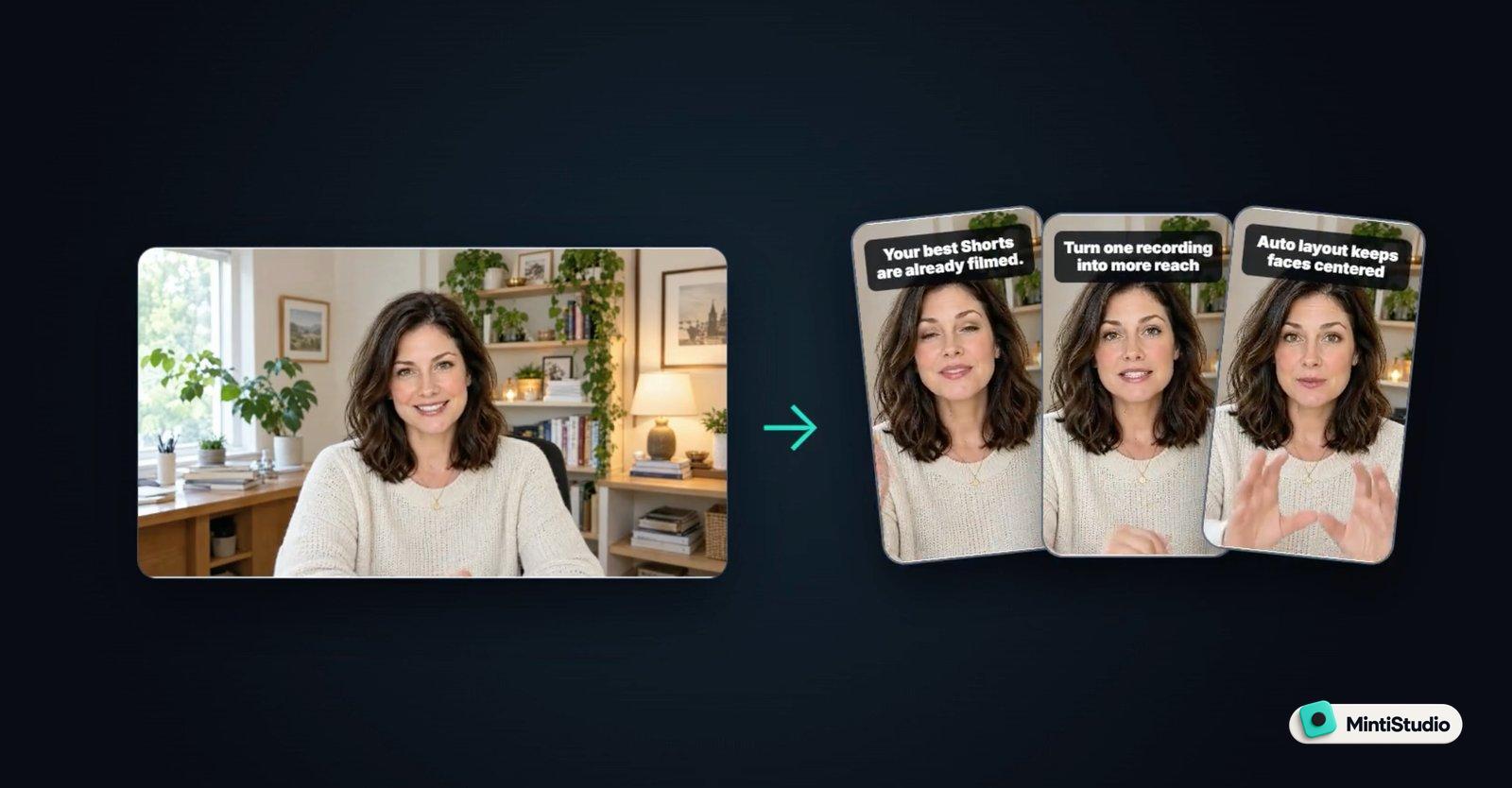
If the original session was horizontal, Minti Studio can reframe it to vertical so the Short fits the format. Caption style templates help make the teaching readable on a phone screen, and scheduling tools help you space the clips out instead of posting everything at once.
If your bottleneck is time, Autopilot is built for that exact job. You share your YouTube channel link, and Minti Studio handles clip selection, vertical preparation, captions, titles, and publishing setup while you review every prepared Short before it goes out. That fits a busy expert who already has recordings and wants the long-video-to-Shorts workflow handled with less operational work.
A workflow for turning one live session into several Shorts
A simple live teaching workflow
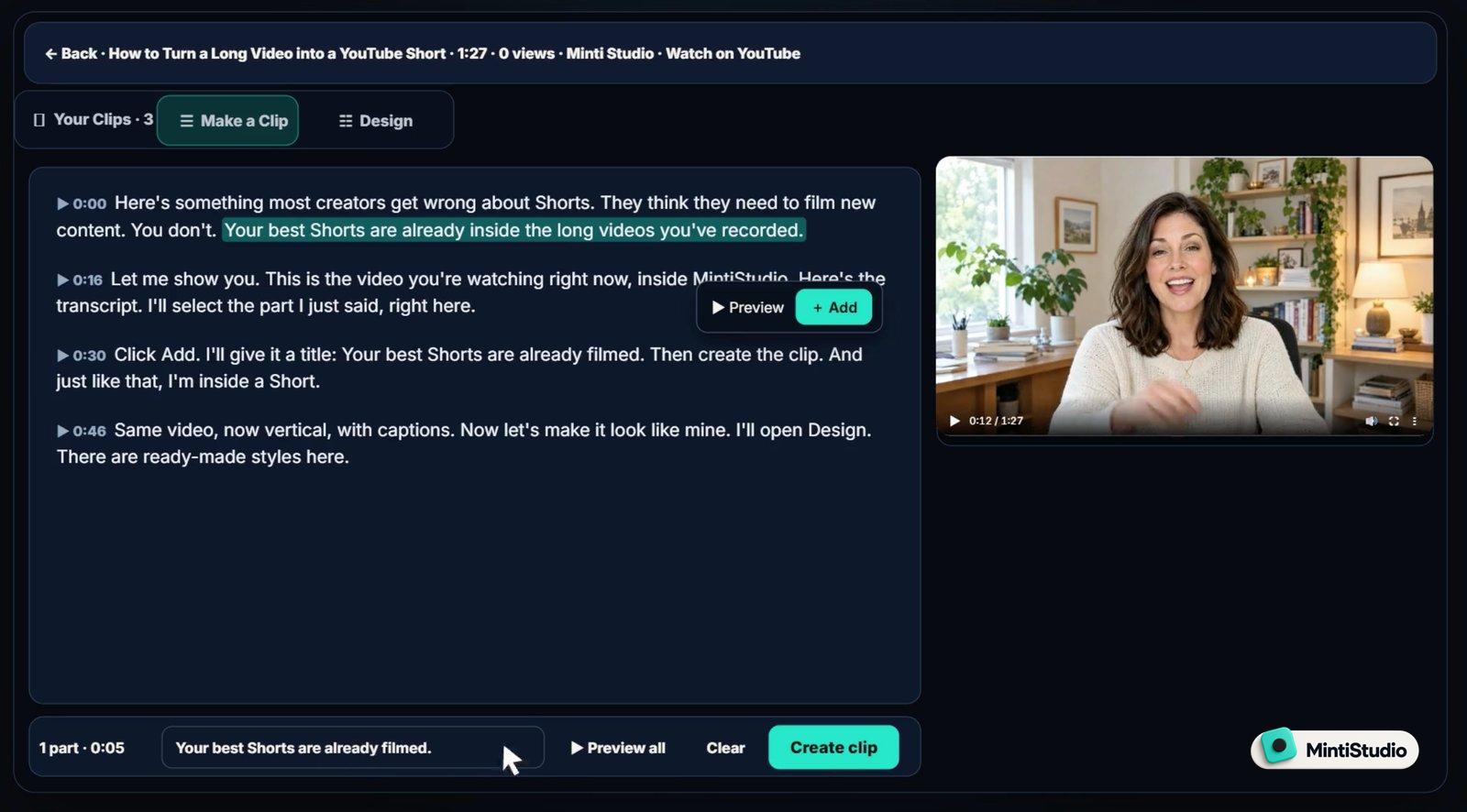 Screenshot from Minti Studio
You do not need a complicated system to make live teaching more interactive and useful.
Step one: decide the interaction goal
Choose one thing you want the audience to do during the live session. That might be asking questions, voting on a topic, or reacting to a framework you are teaching.
Step two: keep the format focused
Build the session around one main lesson so interaction supports the teaching instead of distracting from it.
Step three: use moderation intentionally
Keep the chat useful by removing noise and highlighting questions that help the session move forward.
Step four: save the best teaching moments
After the live session, identify the answers, examples, or objections that are strong enough to stand alone as Shorts.
Step five: publish the follow-up content
Use the recording to create a short-form sequence that keeps the lesson alive after the stream ends.
How to decide which features are worth your time
A solo educator does not need every live feature. The right choice depends on the bottleneck.
If the problem is audience participation, look at tools that improve chat and response handling. If the problem is collaboration, look at co-stream and guest-friendly features. If the problem is post-live production, focus on the workflow after the session.
That final point matters most for most small expertise businesses. A live feature that creates more conversation is helpful. A workflow that turns the conversation into reusable Shorts is even more helpful.
What to watch in official sources
Because live features can change, verify the current rollout and availability in official YouTube sources before you plan content around them. Start with the current YouTube Help pages for live streaming features and the YouTube Blog for product updates.
Check for:
- whether a feature is generally available or still in testing
- whether it works on the format you use most
- whether it changes moderation, publishing, or replay behavior
- whether your channel meets the current eligibility requirements
That keeps your workflow grounded in the tools that actually exist today.
Related guides
- Can Your Live Teaching Earn More Without More Sessions?
- How Coaches Can Turn Long Videos into Shorts That Bring in Clients
- How Educators Can Turn Long Videos into Shorts That Attract Students
The practical next step
If you already teach live, do not start by chasing every new feature. Start by identifying the part of the session that would make teaching clearer or easier to manage.
Then verify the current YouTube details, test the feature in one session, and look at how it changes the experience for viewers. After that, turn the strongest teaching moments into Shorts so the live session keeps working after it ends.
Start free with Minti Studio when you want the post-live clipping and publishing workflow handled with less manual editing.
More from the blog
How Busy Doctors Can Grow a YouTube Channel in One Hour a Week
A practical weekly workflow for doctors who want a steady YouTube channel without turning content into a second job.
YouTube Shorts for Doctors: The Complete Guide
A practical guide for doctors and clinicians who want to use YouTube Shorts for education without turning content into a second job. Learn how to choose safe, useful topics, keep the tone professional, build a simple workflow, and use Minti Studio when your real bottleneck is turning recorded expertise into publishable Shorts.